Bookmarklet help: Chrome
This article will help you install and use the Recipe Tamer bookmarklet in Chrome. See Bookmarklet Help for an overview of the bookmarklet.
Installing the bookmarklet
The bookmarklet can be installed as a button on your Bookmarks toolbar in desktop versions of Chrome, or as a bookmark in all versions.
Create a toolbar button (desktop only)
- Go to the bookmarklet page.
- Make sure the Bookmarks Toolbar is displayed (see how to do this).
- Drag the Tame Recipe button to the toolbar.
Add to Bookmarks menu (desktop)
- Go to the bookmarklet page.
- Add a bookmark for the bookmarklet page: Click the star (bookmark) button in the address bar
- Open the Chrome menu, then select Bookmarks > Bookmark Manager.
- In the Bookmark Manager, find the bookmark you just added (for the Extensions and Plugins page).
- Right-click it and select Edit.
- Change the name (first box) to "Tame Recipe" if that's not what it has.
-
In the address (second box), you should see a very long address that starts with:
https://recipetamer.com/extensions/bookmarkme#
Delete that part, so you're left with just the part that starts with
javascript:(function()
Add to Bookmarks menu (mobile)
- Go to the bookmarklet page.
- Add a bookmark for the page you're on: Open the Chrome menu and click the star (bookmark) button.
- Open the Chrome menu, then select Bookmarks.
- In the Bookmark Manager, find the bookmark you just added (for the Extensions and Plugins page).
- Tap the menu button next to it and select Edit.
- Change the name to "Tame Recipe" if that's not what it has.
-
In the URL, you should see a very long address that starts with:
https://recipetamer.com/extensions/bookmarkme#
Delete that part, so you're left with just the part that starts with
javascript:(function()
- Save the bookmark and you're ready to go.
Using the bookmarklet
To import a recipe using the bookmarklet, go to the Web page containing the recipe you want to import.
Desktop
Click the Tame Recipe button on your bookmarks toolbar, or select the Tame Recipe bookmark from your bookmarks menu.
Mobile
Click or tap in the address box at the top of the page. Type "Tame Recipe" and it should include a result that looks like this (the address will start with "javascript:":
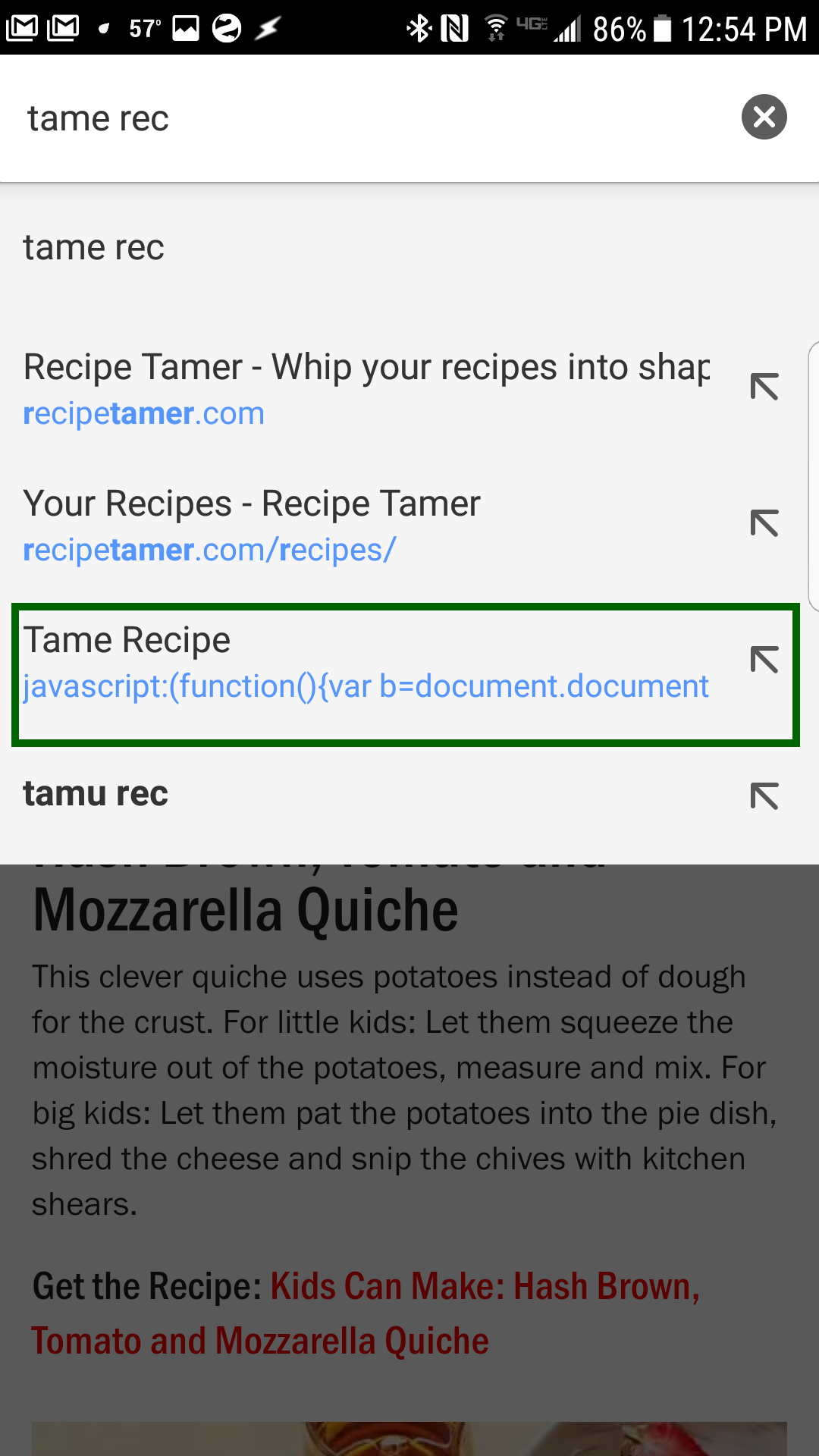
Select that item to send the page to Recipe Tamer.
